Nobody opens Instagram to watch Reels. You open it because someone sent you something, or to post, or to check one person’s story. Then the message is answered in ten seconds and the next forty minutes happen in a feed you never meant to enter.
That’s the hard part with Instagram specifically. The reason you open it is useful, and the thing that keeps you there is one tap away from it.
You can’t turn Reels off
It’s the first thing everyone looks for, and the answer, as of October 2026, is no. There’s no setting that hides Reels, removes the tab, or limits only Reels. Threads about it on r/digitalminimalism and r/nosurf run to nearly a hundred comments each, mostly people trading workarounds that last until the next app update.
The closest thing Instagram offers is Your Algorithm, which shows you the topics behind your Reels recommendations and lets you ask for more or less of each. It changes the flavor of the feed. It doesn’t change that there’s a feed.
Instagram’s limit is a reminder
Instagram does have a Daily limit, under Time management in your profile menu. Read how Instagram describes it, though: you can “set a reminder to let you know when you’ve spent a certain amount of time on Instagram”. A reminder, not a block. You see it, you dismiss it, you keep going.
There’s a stricter version, but not for you. Teen Accounts default to a one-hour limit, and a parent supervising the account can choose to block Instagram at the limit instead of reminding. The teen can then ask for 15 or 30 more minutes, or to ignore the limit for the day, and the parent decides. That’s the right design, and it works because someone else holds the decision. Sleep mode, the other setting in Time management, pauses notifications at night but still lets you use the app.
Your iPhone can lock the whole app
Apple’s Screen Time can limit Instagram from outside the app, but by default its “Time Limit” screen offers “Ignore Limit”, then “Ignore Limit For Today”. If you want to keep using Screen Time, here’s how to make that limit stricter, and why it only really holds when someone else sets the passcode.
The other route is a blocker that uses the same system-level lock but decides the exit itself. That’s where walking comes in.
Lock Instagram until you’ve walked
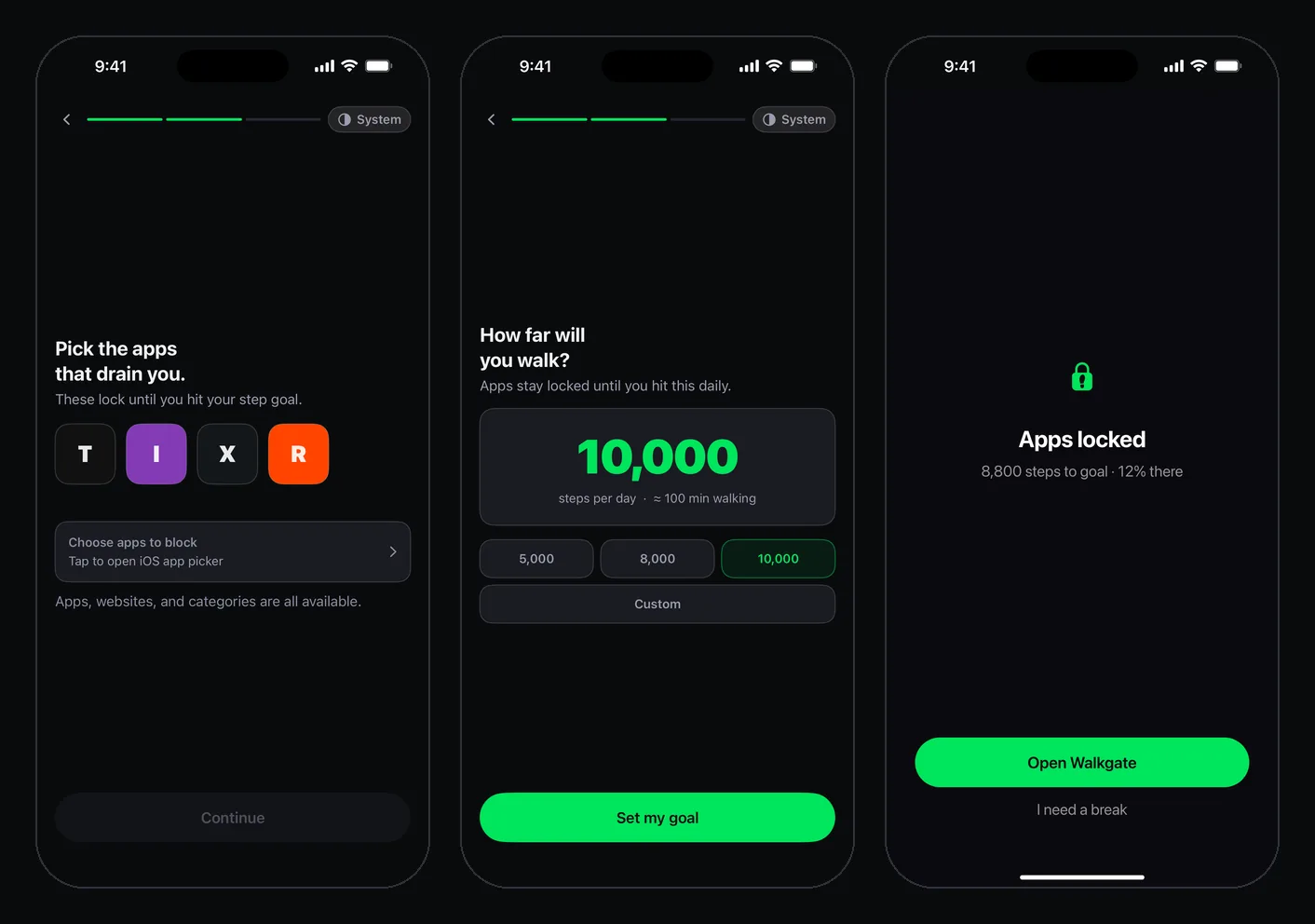
WalkGate keeps Instagram shut until your Apple Health step count reaches your daily goal. Opening it early shows a block screen with the steps left. Hit the goal and it opens for the rest of the day, or, if you choose Earn Minutes, each 100 steps buys a minute.
- Install WalkGate and allow Screen Time access when iOS asks.
- Pick Instagram in Apple’s app picker. The free plan covers one app, with every core feature.
- Set a step goal you’ll clear on a bad day, not a great one.
- Choose Full Unlock or Earn Minutes. If Instagram is mostly messages for you, Earn Minutes is the better fit: a short walk buys a short visit.
The trade-off with messages
Here’s the honest catch. iOS lets blockers lock apps, not parts of apps, so locking Instagram locks your DMs along with Reels. No blocker on iPhone can lock only the Reels tab.
Most people find that’s less of a problem than they feared, for two reasons. The messages that matter usually exist somewhere else too, and moving the important conversations to Messages or WhatsApp takes one “text me here” each. And a lot of “checking a message” turns out to be the excuse rather than the reason, which you’ll notice in the first week.
If it really is where your life happens, use Earn Minutes and treat each walk as buying a visit. You’ll still get your messages; you’ll just get them on purpose.
The exits, plainly
You get one 10-minute break a day, which starts only after a 5-second press-and-hold. You can pause blocking in Settings, but pausing resets your streak and unlocks everything. And locking the app doesn’t touch instagram.com in Safari, so if you drift there, block the site too in Screen Time’s Content and Privacy Restrictions.
If Instagram is one of several feeds you bounce between, the pattern in deleted TikTok and still scrolling will be familiar: the scroll moves to whichever app is still open. Pro locks whole categories for exactly that reason. But start with one app. If it’s the one you open without deciding to, that’s the one.